
Building a gaming rig can seem daunting for beginners, but it offers a rewarding experience and enhances gaming performance significantly. A beginner’s guide to setting up your first gaming rig will simplify the process, making it approachable and enjoyable. Knowing the essential components and steps needed to assemble the PC can empower anyone to create a custom setup tailored to their gaming needs.
In this guide, readers will learn about the crucial parts required for a gaming rig, including the CPU, GPU, memory, and storage. Understanding how these components work together will help in making informed decisions while shopping for parts, ensuring compatibility and efficiency. This knowledge forms the basis for a smooth and successful build, even for those venturing into PC gaming for the first time.
Additionally, the guide will provide tips on tools and resources that can assist throughout the building process. With the right information and approach, anyone can dive into the exciting world of building their own PC and immerse themselves in a superior gaming experience.
Choosing the Right Components
Selecting the right components is crucial for building a successful gaming rig. Each part plays an important role in performance and compatibility. The following sections detail key components, helping to make informed choices.
Central Processing Unit (CPU)
The CPU is the heart of a gaming rig. It performs calculations and processes instructions. Choosing between Intel and AMD is vital:
- Intel offers strong single-thread performance, making it ideal for games that rely on fast processing.
- AMD has made significant strides with its Ryzen series, offering multiple cores for multitasking and productivity.
Key specifications to consider include clock speed (measured in GHz) and the number of cores. A good CPU for gaming usually has a minimum of four cores and runs at least 3.0 GHz. Heatsinks and cooling solutions are also important, as gaming can put significant stress on the CPU.
Graphics Processing Unit (GPU)
The GPU is essential for rendering graphics and providing smooth gameplay. It can dramatically affect gaming performance. When selecting a GPU, users should consider:
- NVIDIA and AMD as the two leading manufacturers.
- GPU memory (VRAM) is crucial; 4GB is a minimum, but 6GB-8GB is recommended for modern games.
Check compatibility with the motherboard and ensure it supports either PCIe 3.0 or PCIe 4.0 for maximum performance. Benchmarking tools and reviews can help determine which GPU offers the best performance for the price.
Memory (RAM)
RAM is vital for overall system performance. It allows for smooth multitasking and quick data access. For gaming, a minimum of 16GB of RAM is often recommended, especially for modern titles.
Key considerations include:
- Type: DDR4 is standard for most builds today.
- Speed: RAM speed is measured in MHz; choose at least 2400 MHz, but 3000 MHz or higher is preferable.
- Dual-channel configuration: This can improve performance, allowing faster data transfer rates.
Ensure compatibility with the motherboard to achieve optimal performance.
Storage Solutions
Storage impacts loading times and overall system responsiveness. There are two primary types of storage solutions:
- Solid State Drives (SSD) offer faster read and write speeds, reducing game load times and enhancing performance.
- Hard Disk Drives (HDDs) provide larger storage capacities at a lower cost, but they are slower.
A combination of both is common: an SSD for the operating system and frequently played games, with an HDD for other data. Consider SATA and PCIe connections, as these affect data transfer speeds.
Motherboard Selection
The motherboard acts as the foundation of the gaming rig. It connects all components, so compatibility is critical. Key factors include:
- Chipset: Choose a chipset compatible with the selected CPU (e.g., Intel or AMD).
- Form factor: Ensure it fits within the chosen case (ATX, Micro-ATX, etc.).
- Expansion slots: Look for enough PCIe slots for future upgrades.
Integrated features like Wi-Fi, Bluetooth, and additional USB ports can also be beneficial.
Power Supply Unit (PSU)
The PSU is often overlooked but is essential for the stability and longevity of the system. A reliable power supply avoids issues related to power surges. Important factors include:
- Wattage: Calculate total wattage needs based on the components. Typically, a power supply of 650W to 750W is sufficient for most builds.
- Efficiency rating: Look for 80 PLUS certification, which indicates energy efficiency.
- Modularity: Fully modular PSUs allow for easier cable management, improving airflow within the case.
Choosing a high-quality PSU ensures stable performance and protects components from electrical issues.
Assembly and Setup
This part of the process involves carefully connecting and securing key components of the gaming rig, ensuring everything is properly aligned for optimal performance. Precision and attention to detail are crucial to avoid potential issues during operation.
Installing the CPU and CPU Cooler
To start, the central processing unit (CPU) should be carefully positioned in the motherboard’s CPU socket. Align the notches on the CPU with the socket to avoid damage. Gently lower it into place and lock it down with the lever.
Next, apply thermal paste to the CPU. A pea-sized amount in the center is often sufficient. Then, attach the CPU cooler, ensuring it covers the CPU evenly. Secure the cooler by following specific instructions based on the model. Connect the cooler’s fan cable to the motherboard to facilitate cooling.
Setting up the Motherboard
The motherboard serves as the backbone, connecting all components. Begin by placing standoffs inside the PC case, aligning them with the motherboard’s screw holes. Carefully lay the motherboard inside the case and secure it using screws.
Check that no wires or standoffs block connections and ports. Following this, connect necessary power connectors from the power supply to the motherboard. This typically includes a 24-pin and an additional 4 or 8-pin connector for CPU power.
Installing RAM and Storage
Install the RAM in the motherboard’s DIMM slots. Ensure the clips on both ends of the slot are open before gently pushing the RAM stick down until the clips lock it in place. Verify compatibility by consulting the motherboard manual.
For storage, consider SSDs or HDDs based on speed preferences. An SSD will offer faster load times, whereas HDDs provide larger storage capacities. Mount these drives in designated bays within the case, securing them with screws and connecting the data and power cables.
Mounting the Power Supply and GPU
Position the power supply unit (PSU) into its designated case area, usually at the bottom or top, considering airflow. Secure it with screws and ensure the fan faces the proper direction to draw air.
Next, install the graphics processing unit (GPU) into the motherboard’s PCIe slot. Before securing, ensure the GPU aligns correctly with the back of the case for optimal placement. Connect the necessary power connectors from the PSU to the GPU, typically 6-pin or 8-pin connectors, to provide adequate power.
Connecting Peripherals
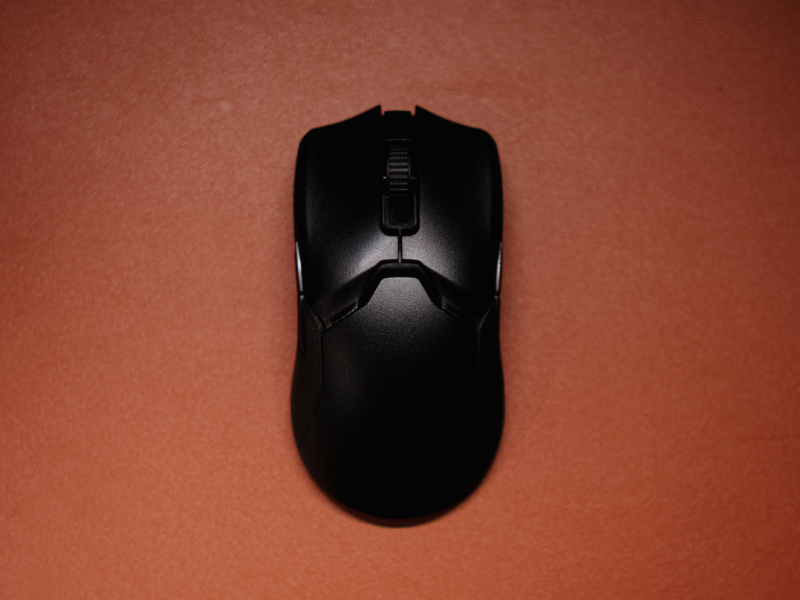
Finally, it’s essential to connect peripherals to the gaming rig. This includes connecting the keyboard, mouse, and monitor. Use USB ports for the keyboard and mouse, while the monitor will typically connect via HDMI or DisplayPort.
Cable management is vital for maintaining airflow and organization. Route cables behind the motherboard tray or along the edges of the case. Use zip ties or Velcro straps to bundle cables neatly, facilitating a clean and professional appearance.
Ensuring proper connections at each step will enhance the gaming experience and prolong the rig’s lifespan.
Enhancements and Customizations
To get the most out of a gaming rig, enhancements and customizations can significantly improve performance and aesthetics. He or she should consider cooling systems, lighting, and potential upgrades to existing components to tailor the setup to their preferences.
Cooling Systems
Effective cooling is crucial for maintaining optimal gaming performance. Two popular options are air cooling and liquid cooling. Air cooling typically involves multiple fans and a CPU cooler to dissipate heat. It’s budget-friendly and easier to install.
Liquid cooling, on the other hand, involves a radiator and coolant to transfer heat away from critical components. It offers superior cooling efficiency, particularly for demanding games, and can operate more quietly. Users need to ensure their power supply unit (PSU) can handle the additional components if opting for liquid cooling.
Lighting and Aesthetics
A visually appealing gaming rig can enhance the overall experience. RGB lighting options have become popular for adding flair. Many components, like motherboards, fans, and even RAM, come with customizable RGB features.
Choosing the right colors and effects can create an immersive environment. Users can synchronize lighting across different parts for a cohesive look. LED strips can also be added to cases, maximizing aesthetic appeal while providing illumination.
Upgrading Existing Components
As gaming technology evolves, upgrading existing components can keep a rig competitive. The first step is identifying which parts require enhancement.
Graphics cards (GPUs) and central processing units (CPUs) are common upgrade targets, significantly impacting gaming performance. Users should also consider upgrading their RAM for smoother multitasking during intense sessions.
Before upgrading, it’s essential to check compatibility with the existing setup. Ensuring that the PSU can support new components is also necessary to avoid power issues. Upgrading can lead to noticeable improvements in gameplay and overall system responsiveness.